Your ADA Compliance Checklist

Whether you’re running a business, providing information for your community as a non-profit, or offering services and resources as a government organization, your website has to meet basic ADA compliance standards.

The Americans with Disabilities Act (ADA) sets rules to ensure that your website is accessible to people with impaired vision. Because the government considers commercial websites “places of public accommodation,” an inaccessible site excludes users with disabilities in the same way an inaccessible physical storefront would. Failing to meet ADA compliance requirements may lead to lawsuits and penalties.

Here is a short list of the most common ADA compliance issues your website may have:


Headings

When creating or updating your website, you might be tempted to add headings to your pages because of the style. However, headings must follow strict rules of sequence and nesting.

Your page title is always H1, and it should be the only line of text with that heading tag.

The next heading below that must always be H2. If that section of text has smaller sections with subheadings, those must always be H3. The numbers get larger as you add sections within sections within sections. Then, the heading of the next big section is once again H2.

This is to ensure that when someone uses a screen reader, they can easily follow the page hierarchy and access the information in the order it was intended.


Fonts and Colors

Style is great. Adding color and fancy fonts to your website can definitely make a statement. But your text still needs to be readable by everyone, including people with impaired vision and colorblindness.

Your text must meet two requirements for ADA compliance: size and contrast. While size is self-explanatory, contrast can get tricky, especially when you’re using colorful backgrounds. For solid color backgrounds, use Adobe’s Color Contrast Checker tool to make sure your text remains compliant. If you’re using a photo or graphic as your background, it should be low contrast. For extra readability, try adding a white or black overlay (depending on the color of your foreground text).


Image Alt Text

Alt or Alternative Text is a brief description of the image that is entered into the metadata for the image. Screen readers do not have the ability to read images, so the Alt Text provides a clue as to what the visitor should be seeing.

Alt text is required on all images, except in cases where the image is purely decorative, such as an abstract background, or a staff member headshot whose name is included with their photo.


Graphics with Embedded Text

Sometimes you make a graphic or a flyer and it looks so good you want to display it on your site. Putting it up as a picture saves you a lot of time retyping and styling the content, so why not, right?

Wrong. As mentioned above, screen readers cannot “read” the information embedded in an image. For ADA compliance, large sections of text and important information must be typed on the webpage in order to be accessible and readable. If you want to showcase your flyer, include it as a thumbnail for decoration.


Scanned PDF Documents

When sharing PDF documents through your website, ADA rules still apply. Your PDF must be readable using a screen reader. Scanned documents do not meet these requirements, unless you use an OCR scanner. Regular office scanners convert the printed page into an image.

In order to make a PDF document ADA-compliant, save the original source document as a PDF directly. If you have multiple documents that need to be merged, use a tool like Adobe Acrobat Pro to do so.

Warning: AI chatbots can sometimes extract text from images, but they are not always reliable and should not be used to make PDF documents ADA-compliant. This is especially true for government organizations, non-profits, and businesses that face higher public scrutiny.


When is it time to call in the pros?

Proactive compliance is always better than the alternative. Your website should start with accessibility and mobile responsiveness as the primary requirements. If it didn’t, or if it’s been a while since your website was updated, it may be time to reassess and reevaluate.

Call the Nerds to schedule a free consultation. We can perform an ADA assessment, and let you know what needs fixing, what could use some work, and how your website can be improved.
When Web Builders Update: Getting Nerdy With It

Technology is advancing and evolving every day. With the advent of AI, we’re seeing new tools emerge faster than ever. That also includes web builder platforms.  Sometimes, you build out your site with fancy add-ons, and then the builder updates, and you just hope your add-ons are still supported.

For example, the WordPress plugin Elementor, which we use for our Nerd Crossing website and some of our clients’ websites just launched version 4.0. Being the Nerds that we are, we checked it out. If your website isn’t currently hosted on WordPress, this post isn’t for you. If you are hosted on WordPress, and/or are interested in Elementor, keep reading!

Here’s what you need to know:

What’s New

Disclaimer: Elementor is a robust and versatile web builder and page builder that essentially allows you to create a fully custom website from scratch. While it has a lot of amazing functionality, it also has a learning curve and may not be right for everyone. With that said, Nerds love being nerdy, and this baby is right up our alley!

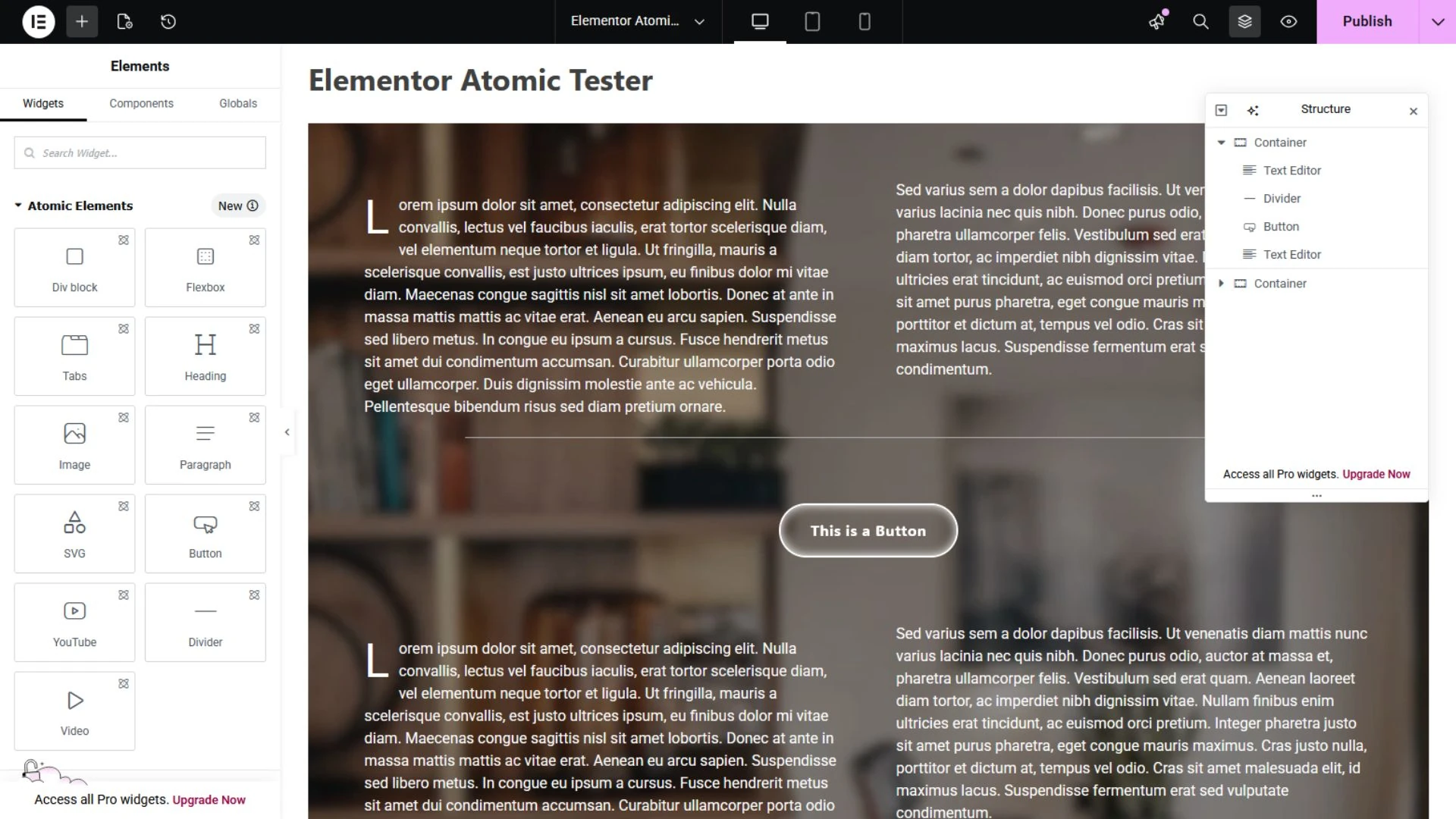
4.0, AKA “Atomic” is currently an optional version you can activate or deactivate in your Dashboard. The builder UI is still pretty much the same, but there are some new widgets and a new way to create styles, variables, and classes right in the page builder. This is a great feature which can streamline and simplify the styling of your entire website (as long as you know what you’re doing).

Pros

The new Atomic widgets are essentially blank building blocks which you can customize as much or as little as you like. How you customize them has also been streamlined, with settings grouped together in a more logical way that is uniform for each widget. No more clicking around to different tabs.

You can also now save elements as reusable components and make parts of them editable, which essentially means you can make your own custom widgets right there in the page editor. This is currently only available on the Pro version of Elementor, but creates a lot of potential flexibility for web designers.

Probably the best and most important part of this update is that it remains backwards compatible with older widgets and add-on plugins. Whatever you already built out on your website will still be functional and editable in this new version the same way as before. You can keep the widgets you already have on your site and continue to add them to pages going forward. 

Cons

As with all new technology releases, Elementor 4.0 has a few bugs that need to be worked out and some limitations we’re hoping will be addressed with future updates. There are only a few Atomic widgets currently available (with more to come). This may be offset for most users with the ability to create custom components, but you cannot create those with legacy widgets.

As this is a new update, some older add-on plugins that allow you to use Elementor templates, or combine or nest widgets don’t always recognize the new Atomic styling convention, which may cause issues. Until the plugins update for compatibility, you can avoid problems by substituting legacy widgets for Atomic ones.

The biggest limitation is the new Atomic Paragraph widget. Arguably the most essential piece of a webpage, it adds text one Atomic paragraph widget at a time. The Nerds rate it a 3/10. Less, if you’re working with large blocks of text, like a blog post. For this, we recommend using the legacy Text Editor widget, which still retains full functionality with more options for customizing your text in one instance.

While the Elementor web builder update made global styling easier in some ways, its most powerful functions may still be too complex for the average user, especially if you’re new to Elementor, or web design in general. Some knowledge of CSS is definitely required and recommended, even with more and more tutorials popping up on YouTube every day.

Conclusion

The new Elementor plugin does make creating style sheets easier as a user interface with variable controls that allows you to click through and preview changes to styling in real time, rather than typing out whole sequences of code and hoping you don’t miss an end bracket.  With that said, you are, in fact, creating modular code to style your website using this tool.

So who’s this for? Well, we probably wouldn’t recommend it as a starting point for beginners building their first website, but if you have a little experience under your belt and you like to kick the tires on new tech, this is a good one to try out. Also, if you’re handing off  a custom website to a client for future content edits, they might appreciate the WYSIWYG Elementor editor over the native WordPress Block editor, too. 

Need Some Help?

All of these new bells and whistles can be a lot to learn and absorb. But don’t worry, your friendly neighborhood Nerds are here to help you out! Does your website need an update, or an ADA compliance check? We can help! Give us a shout and we’ll get you sorted out.