When Web Builders Update: Getting Nerdy With It

Technology is advancing and evolving every day. With the advent of AI, we’re seeing new tools emerge faster than ever. That also includes web builder platforms.  Sometimes, you build out your site with fancy add-ons, and then the builder updates, and you just hope your add-ons are still supported.

For example, the WordPress plugin Elementor, which we use for our Nerd Crossing website and some of our clients’ websites just launched version 4.0. Being the Nerds that we are, we checked it out. If your website isn’t currently hosted on WordPress, this post isn’t for you. If you are hosted on WordPress, and/or are interested in Elementor, keep reading!

Here’s what you need to know:

What’s New

Disclaimer: Elementor is a robust and versatile web builder and page builder that essentially allows you to create a fully custom website from scratch. While it has a lot of amazing functionality, it also has a learning curve and may not be right for everyone. With that said, Nerds love being nerdy, and this baby is right up our alley!

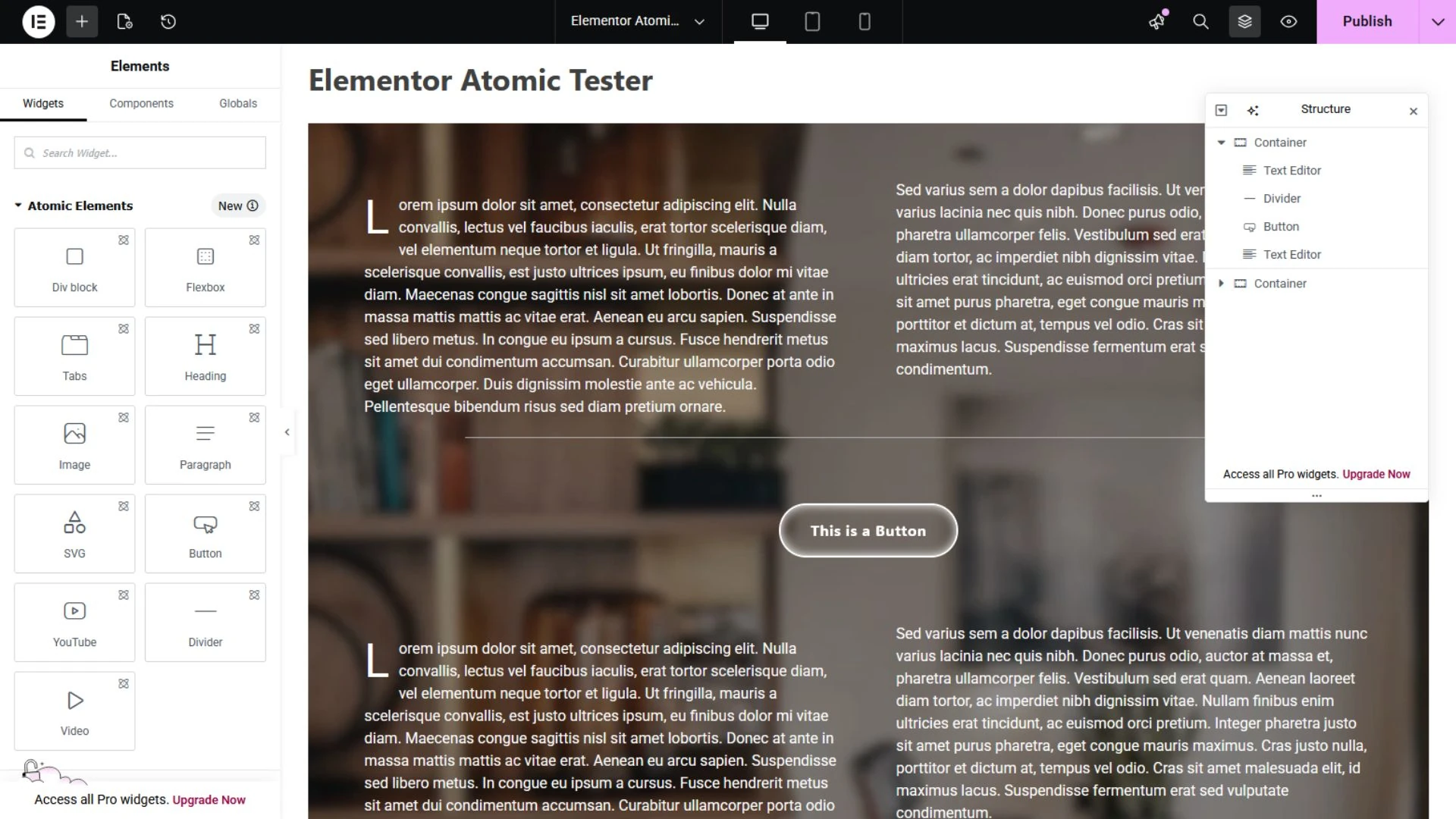
4.0, AKA “Atomic” is currently an optional version you can activate or deactivate in your Dashboard. The builder UI is still pretty much the same, but there are some new widgets and a new way to create styles, variables, and classes right in the page builder. This is a great feature which can streamline and simplify the styling of your entire website (as long as you know what you’re doing).

Pros

The new Atomic widgets are essentially blank building blocks which you can customize as much or as little as you like. How you customize them has also been streamlined, with settings grouped together in a more logical way that is uniform for each widget. No more clicking around to different tabs.

You can also now save elements as reusable components and make parts of them editable, which essentially means you can make your own custom widgets right there in the page editor. This is currently only available on the Pro version of Elementor, but creates a lot of potential flexibility for web designers.

Probably the best and most important part of this update is that it remains backwards compatible with older widgets and add-on plugins. Whatever you already built out on your website will still be functional and editable in this new version the same way as before. You can keep the widgets you already have on your site and continue to add them to pages going forward. 

Cons

As with all new technology releases, Elementor 4.0 has a few bugs that need to be worked out and some limitations we’re hoping will be addressed with future updates. There are only a few Atomic widgets currently available (with more to come). This may be offset for most users with the ability to create custom components, but you cannot create those with legacy widgets.

As this is a new update, some older add-on plugins that allow you to use Elementor templates, or combine or nest widgets don’t always recognize the new Atomic styling convention, which may cause issues. Until the plugins update for compatibility, you can avoid problems by substituting legacy widgets for Atomic ones.

The biggest limitation is the new Atomic Paragraph widget. Arguably the most essential piece of a webpage, it adds text one Atomic paragraph widget at a time. The Nerds rate it a 3/10. Less, if you’re working with large blocks of text, like a blog post. For this, we recommend using the legacy Text Editor widget, which still retains full functionality with more options for customizing your text in one instance.

While the Elementor web builder update made global styling easier in some ways, its most powerful functions may still be too complex for the average user, especially if you’re new to Elementor, or web design in general. Some knowledge of CSS is definitely required and recommended, even with more and more tutorials popping up on YouTube every day.

Conclusion

The new Elementor plugin does make creating style sheets easier as a user interface with variable controls that allows you to click through and preview changes to styling in real time, rather than typing out whole sequences of code and hoping you don’t miss an end bracket.  With that said, you are, in fact, creating modular code to style your website using this tool.

So who’s this for? Well, we probably wouldn’t recommend it as a starting point for beginners building their first website, but if you have a little experience under your belt and you like to kick the tires on new tech, this is a good one to try out. Also, if you’re handing off  a custom website to a client for future content edits, they might appreciate the WYSIWYG Elementor editor over the native WordPress Block editor, too. 

Need Some Help?

All of these new bells and whistles can be a lot to learn and absorb. But don’t worry, your friendly neighborhood Nerds are here to help you out! Does your website need an update, or an ADA compliance check? We can help! Give us a shout and we’ll get you sorted out.

Domain Names: How Not to Lose Them

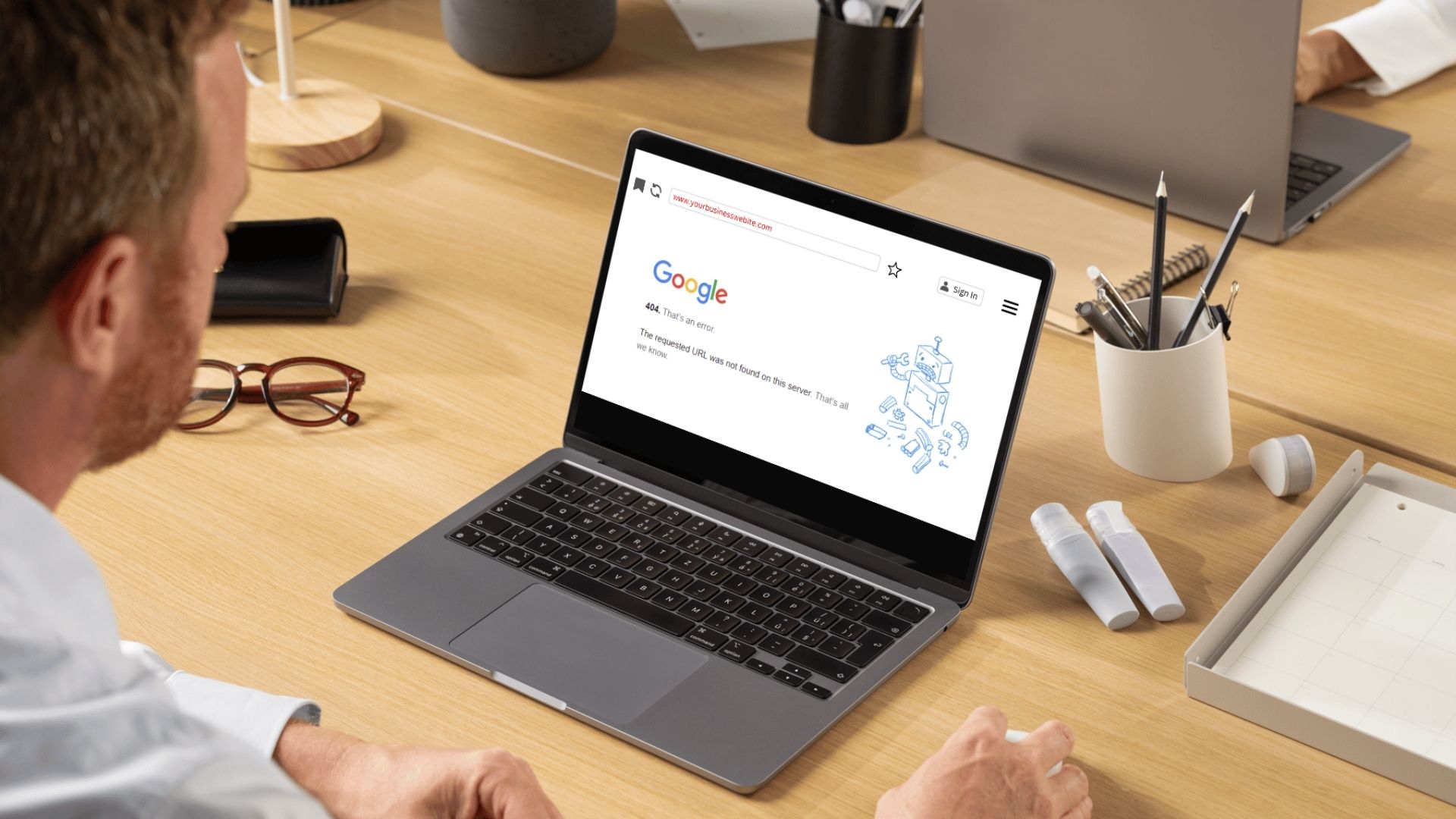
Picture this: You get an email notification about your domain name expiring. You mark it as Read and move on with your day. Two months later, your friend asks you what happened to your website—it’s not working anymore.

Turns out, you never acted on that notification. Your website domain name registration expired, and someone else bought it. You just lost your website, your branded email, and access to all accounts that you set up with it.

Now what?

You don’t own a domain. You rent it.

When you purchase a custom URL, you don’t own it indefinitely. You rent it for a set period of time. If you want to keep it, it’s up to you to renew it when the term expires. If you forget, you could find yourself in a world of trouble. Expired domains go to auction and can be bought by anyone. And once they have your branded URL, they could hijack your brand to spoof your business, or even hold the domain name for ransom, forcing you to pay whatever they ask to get it back.

This is not a scare tactic or an urban legend. It’s a real-world issue that happens every day, and affects thousands of people and small businesses, costing not just money, but SEO power and brand reputation, too.

How to protect yourself

Luckily, this is 100% preventable. To protect your business website and related services, follow the steps below:

Register your domain with a reliable registrar
Always make sure you’re dealing with a reputable service provider like GoDaddy or our personal go-to,Namecheap, to register your domain. Set up your account, and make sure your information is kept up to date.

Register for multiple years
If you have an option, always register for as long as you can. This not only reduces maintenance work, but may also save you some money, as longer term registrations offer a per-year discount.

Activate autorenewal
The best way to make sure your website URL doesn’t expire is to make it renew automatically. You will still receive a notification of renewal each time but, as long as your payment information is up to date in your account, there is no further action required. Speaking of which…

Keep your payment information up to date
It goes without saying that renewals must be purchased. If your payment information expires or changes and the charge can’t go through, you may still lose your website URL. Make it a habit to go through all of your accounts and update your payment information whenever you change your default payment method or get a new credit card.

Read your registrar’s communications
Your service provider will send you periodic updates via email. Keep an eye out for these, and always read through them to make sure you don’t miss anything. Regularly opening these emails will also help prevent important notices being sent to Spam.

Need to spruce up your website?

Your website is your online business card and portfolio. It’s the first thing users see when they look you up. Does your website communicate the right message to potential customers? If you need help updating your online image, we’ve got you! Contact us today for a free consultation.

How to Best Utilize Social Media


Social media icons on phone

Over the last few years, social media has grown and expanded into an intimidating beast. From Facebook to YouTube to LinkedIn—it’s easy to get overwhelmed trying to stay on top of it all.

Here’s a tip: you don’t have to. If you’re struggling to juggle all the platforms at once to maintain brand awareness and advertise your business, here is how you can streamline your social media presence and increase your impact on your audience.

Step 1: Prioritize

Every platform has its purpose, and not all of them will fit your needs. Your first step is to identify what you want to accomplish, choose the right platform(s) to fit your needs and focus on just that. Social media is all about engagement. In terms of public image, it’s less harmful to have no page at all, than to have a “dead” page you don’t maintain.

Which platform is right for you?

  • LinkedIn: Spotlight business growth, recruit, and generate B2B leads
  • Facebook and X (Twitter): Grow brand awareness and connect with clients
  • YouTube and TikTok: Share video content relevant to your business
  • Instagram: Showcase your work with before and after comparisons, and progress images or timelapse videos

Step 2: Streamline

Maintaining multiple platforms at once can be time-consuming. Luckily, there are several tools that help you bring your social media into one dashboard where you can monitor all of your profiles and schedule posts with ease. Shop around, compare different tools and pricing, and pick the one that fits your needs. Here are a few options you can check out:

  • HubSpot: A robust platform that puts all of your marketing efforts under one roof with one all-encompassing Client Relationship Management (CRM) system.
  • EClincher: Similar to Hootsuite, this platform takes your social media management to the next level with AI tools and tons of integrations.
  • Zoho Social: For an affordable, scalable solution without all the pricey bells and whistles, Zoho Social is the way to go. Everything you need, in a simple, user-friendly interface.

Step 3: Engage

If you’re using social media like a stage with a spotlight, you’re doing it wrong. Social media is all about engagement. The content you post should be tailored to elicit a reaction, whether it’s likes, comments, or reposts. The more people interact with your content, the better your results will be.

And it doesn’t stop there. When people do interact, you should respond accordingly. If someone comments, Like or reply to acknowledge them. When they share or repost, offer a Like as well. You should also occasionally go outside your bubble and interact with other pages as well. This helps boost your visibility and engagement.

A few tips to make your posts more engaging:

  • Ask questions: This prompts visitors to respond to your post
  • Share and repost: Current events, community news, and relevant content from other businesses or industry professionals helps to solidify your credibility.
  • Include Media: Add images or videos to make your posts colorful and attract attention.
  • Add tags: Tags also help with discoverability. Don’t go overboard. Focus on the ones most relevant to the audience you want to attract. Think about what they would be searching for and include it as a hashtag. Aim for 5 or so for best results.
  • Be genuine and true to your brand: Set the tone you want your brand to convey (playful, professional, informative, friendly, supportive, etc.) and stick to it across your social media.
  • Include a call to action: Don’t forget, your goal on social media is to generate more business. It doesn’t have to be on every post, but at least 50-60% of them should include some kind of call to action that reminds your audience you’re open for business. Direct them to your website or a dedicated landing page where they can read more about your products or services and contact you directly.

Every business should have a website to help generate business. If you don’t have one, or you’d like to improve what you have, we can help!

Warning: Pace Yourself!

Social media can be an incredible time suck. Once you get into it, it’s difficult to come back out. This can have a negative impact on your productivity and time management. To avoid getting pulled into the black hole of doomscrolling, schedule a dedicated time slot for social media in your day, and stick to it. 15-30 minutes a day should be more than enough to log in, respond to comments, post something new, and log out. Remember: unless you’re an influencer or professional content creator, social media should be a supplement to your business, not its sole focus.