

Your website probably has a color scheme, and it can be time consuming manually entering colors values every time you add an element to a page.
In Elementor you can save your color values making this much easier!
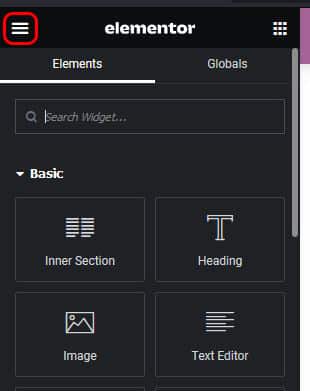
When editing any page click the three bars on the top left of the elementor edit menu.
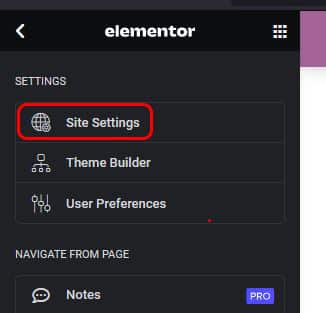
Then under “Settings” select “Site Settings”.

Under “Design System” select “Global Colors”.

It will then show a list of the existing “System Colors” which you can edit, and the option to add another new color using the ‘Add Color” button at the bottom. Let’s add a new color!

You can click on the “New Item #1” and rename it to something appropriate.
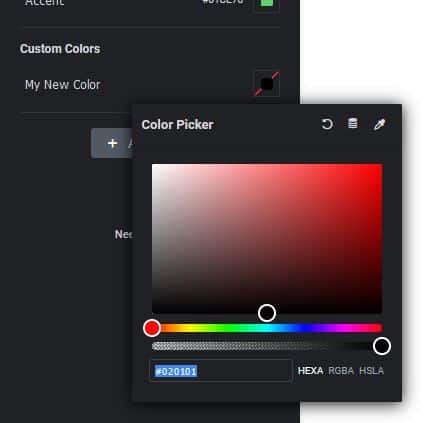
Clicking in the small box with the red diagonal stripe will open up the color picker.

In the color picker you can the three circles to achieve the color you want, or enter a HEX, HEXA, RGBA or HSLA code.
As always, don’t forget to save your changes!
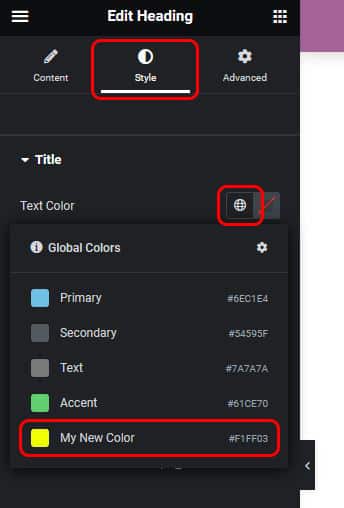
Now when we edit the style of an element – when we click the globe icon our new color will show!